Password-Protect Windows 10 Files Without Extra Software
Windows does not provide a universal “put a password on this folder” command. On eligible Pro, Enterprise, and Education systems, EFS can encrypt files for the signed-in Windows account. Microsoft Office desktop apps can add an open password to supported documents. Device Encryption may also be available on compatible Windows Home devices, but it protects drives rather than adding a separate folder password.
Do not use CMD “folder locker” scripts for security. They normally hide or rename a folder and store the supposed password as readable text. They do not encrypt the files.
Windows 10 handles file security in ways that can be incredibly confusing. While macOS offers a straightforward "password protect" right-click choice, Windows splits its native security between BitLocker (whole drive encryption), EFS (file-level encryption tied to your user account), and basic file hiding.
If your goal is to password protect a folder in Windows 10 without software, you are in the right place. This walkthrough explains every native approach available, how they interact with Windows 10 Home versus Pro, and what to do when native tools fall short of actual security.
- Interactive: Which approach is right for you?
- Requirements & Windows 10 Home vs Pro
- approach 1: Use EFS to Protect Files in Windows 10 (No Extra Software)
- Approach 2: Why CMD Folder-Locker Scripts Are Unsafe
- approach 3: Password Protect Office Documents Natively
- approach 4: Create password-secured ZIP in Windows 10
- Head-to-Head Comparison Table
- Our Verdict: When to use Folder Lock
- Troubleshooting & Forgotten Passwords
- Frequently Asked Questions
Document Protection Method Selector
Answer one question to find the best approach for your selected files.
Use the desktop Office app's File > Info > Protect Document > Encrypt with Password option for supported Office documents. Browsers do not add PDF passwords; use a PDF editor whose current plan includes password protection. Jump to approach 3 →
Since you are on Windows 10 Pro/Enterprise, use the native EFS function. It ties encryption to your Windows login, meaning files are automatically unlocked for you but locked to anyone else. Jump to approach 1 →
Hiding a folder is not a security control. Use a separate Windows account with appropriate permissions, check whether Device Encryption is available, or use supported encryption. See why CMD scripts are unsafe →
Windows Home does not include EFS or the advanced BitLocker Drive Encryption interface, but Device Encryption is available on some compatible Home devices. Check Settings and back up the recovery key before making changes. Review the requirements →
Requirements: Windows 10 Home vs Pro
Before attempting to encrypt file windows 10 without software, you must check your Windows edition. Microsoft actively disables native file encryption in its Home edition.
Windows 10 Home does not include EFS or the advanced BitLocker Drive Encryption management interface. Some compatible Home devices support Device Encryption for the operating-system and fixed drives. If Device Encryption is not shown in Settings, the device or account may not meet Microsoft's requirements.

To check your version: Press Win + I to open controls, go to System > About, and look under "Windows specifications".
Use EFS to Protect Files in Windows 10 — No Extra Software
If you have Windows 10 Pro, Enterprise, or Education, the Encrypting File System (EFS) is the most seamless native tool available.
Important note on how this works: EFS uses a certificate associated with the Windows user account rather than a separate per-file password. Files normally open while the authorized user is signed in. Back up the EFS certificate and protect the Windows account; losing the certificate after reinstalling Windows can make the files inaccessible.
Step-by-Step EFS Configuration
- Right-click the file or folder you want to protect and select Properties.
- On the General tab, click the Advanced button.
- Check the box for Encrypt contents to secure data.
- Click OK, then Apply.
- Windows will ask if you want to encrypt just the folder or the folder, subfolders, and files. Choose your preference and click OK.

Always back up your EFS encryption key. Windows will usually prompt you to back up your file encryption certificate when you first use EFS. Do not ignore this. If your Windows profile corrupts or you reinstall Windows without backing up this key, you will permanently lose access to those files.
Why CMD Folder-Locker Scripts Are Unsafe
Common batch-file tutorials rename a folder, apply hidden and system attributes, and compare typed text with a password written directly inside the script. Anyone who opens the batch file can read that password, and anyone who enables hidden files or changes the attributes can reach the folder.

A CMD locker does not encrypt file contents and should never hold financial records, identity documents, credentials, client files, or other sensitive information.
For casual organization, use normal hidden-file settings. For privacy between people who share a PC, use separate Windows accounts and permissions. For data protection, use EFS on supported editions, Device Encryption or BitLocker where available, an application-level password for supported documents, or a vetted encryption product.
Password Protect a File in Windows 10 (Office & PDFs)
Often, users search for document password security when they really just need to lock a selected Word or Excel file. You don't need folder locks for this; the applications handle it natively using strong AES encryption.
Permissions Password vs Open Password — Explained
Open Password (Encryption)
An open password encrypts a supported Office document so it cannot be opened without the password. Choose a long, unique password and keep a recovery copy: Microsoft cannot retrieve a forgotten document password. To set it, open the document and choose File > Info > Protect Document > Encrypt with Password.
Permissions Password (Restriction)
This allows anyone to open and read the document, but prevents editing, copying, or printing. This does not encrypt the file. It is merely a flag telling the software to restrict tools. To set it: go to Review > Restrict Editing.
Can I add password protection to my file on my desktop?
For a standalone file that is not supported by an app-level password feature, Windows 10 has no universal per-file password command. Use EFS on an eligible edition, protect the whole device or drive where appropriate, or use a reputable encryption tool.
Password-Protected ZIP Files in Windows 10
Windows 10 can create and extract ordinary ZIP archives, but its built-in ZIP interface does not create password-protected archives. Creating an encrypted archive requires a reputable archive or encryption application that supports it.

A ZIP archive without encryption only bundles or compresses files; it does not keep their contents private. If installing software is not an option, use a supported Office document password for applicable files or check whether device-level encryption is available. Do not substitute a CMD hiding script.
Reasons "No Software" Isn't Always the Best Security
Built-in Windows options serve different purposes: EFS is unavailable on Home editions, device encryption protects a device rather than one folder, and hiding files provides no confidentiality. If those options do not match your needs, evaluate a dedicated product such as Folder Lock, confirm that its current features support your Windows edition, and keep a tested backup.
Beyond Basic Passwords: Why Native Windows Tools Fall Short
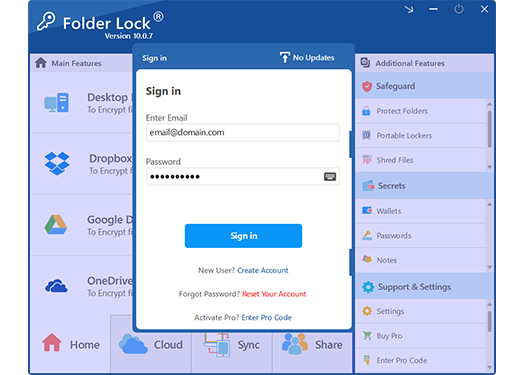
When you shift from native Windows 10 workarounds to a dedicated security architecture (like Folder Lock or Folder Protect), you gain capabilities that directly address modern data threats like system reboots, hardware theft, and unauthorized data recovery.

Kernel-Level Safe Mode Protection
Hidden and system attributes can be reversed and must not be treated as protection. When evaluating dedicated software, review how its encrypted data behaves during Windows recovery, Safe Mode, account changes, and product removal, and test recovery with noncritical data before relying on it.

Granular Access (Read-Only or Undeletable)
Windows 10 native folder protections are typically all-or-nothing. Advanced offline software lets you assign selected restrictions to a file. for instance, you can choose to make a file completely "undeletable" but still allow others to read it, or you can make it "write-protected" so co-workers can view your data without accidentally modifying the contents.
Stealth Operation & Hack Monitoring
True privacy means hiding the fact that you are hiding something. Advanced solutions offer a "Stealth Mode" that completely wipes the program's shortcuts from the Desktop, Start Menu, and Add/Remove Programs list. The vault only materializes when you press a selected, secret hotkey combination. Furthermore, if an intruder tries to guess your password, the software can actively log the attempts and automatically log off your Windows session or shut down the PC.

On-the-Fly Virtual Decryption
Unlike basic tools that physically decrypt files onto your hard drive (leaving recoverable traces), dedicated vault software utilizes dynamic virtual drives. Data is decrypted strictly within your system's RAM. When the locker is closed, all traces vanish instantly, completely shielding you from deep-scan data recovery software.
Head-to-Head Comparison: Native vs Software
Here is how the native approaches stack up against dedicated encryption and locking software when dealing with Windows 10.
| approach | True Encryption? | Safe Mode Security | Stealth / Hidden Operation | Win 10 Home Support |
|---|---|---|---|---|
| EFS (Native) | Yes (Tied to user profile) | No | No | No |
| CMD Script | No (Hides only) | No (Bypassed entirely) | No | Yes |
| Office Passwords | Yes (AES-256) | Yes (File-level) | No | Yes |
| Folder Lock / Protect | Yes (AES-256 Virtual Drive) | Yes (Kernel-Level) | Yes (Hotkey access) | Yes |
Owner-Safe Problem Solving & File Recovery
A frequent side effect of native file protection is accidental data loss. If you are searching for answers to "forgot password" queries, here is how to recover access as the legitimate owner.
If you lose an open password for an Office document, Microsoft cannot recover it. Check an authorized password record or an unencrypted backup. If editing is restricted, ask the document owner to remove or change the restriction; do not upload confidential documents to another service as a workaround.
Do not place sensitive files in it. These scripts usually hide or rename a folder without encrypting its contents, and often expose the supposed password in readable script text. Move the files into a supported protection method and delete the obsolete script after confirming your files and backups are intact.
If you changed your Windows password through an admin reset (instead of typing your old password to change it), you will lose access to EFS files. You must restore your backed-up EFS certificate (.pfx file) via the Certificate Manager (certmgr.msc). Without that backup, the files are permanently unrecoverable.
Common Questions and Answers
Frequent Queries Addressed
Straightforward answers to the most frequent Windows 10 file protection scenarios.
Windows 10 has no built-in command that gives one folder a separate password. Eligible Pro, Enterprise, and Education editions can use EFS for account-based file encryption. Device Encryption or BitLocker protects drives, while supported Office apps can add passwords to individual documents.
Use separate Windows accounts and permissions, check whether Device Encryption is available on the PC, and use application passwords for supported documents. Windows 10 Home does not include EFS or a built-in per-folder password feature.
No, Google Drive does not offer a function to password protect selected folders natively. You control access via sharing permissions (who you invite to the folder). If you need a password, you must encrypt the folder locally (e.g., using Folder Lock or ZIP) before uploading it to Drive.
If you apply an Open Password to a PDF (requiring a password to view the contents), yes, standard PDF software applies AES encryption. If you apply a Permissions Password (restricting printing/editing but allowing viewing), the content is not encrypted.
Windows has no universal password command for a generic file such as a JPG or TXT. Use a supported app-level password, EFS on an eligible edition, device or drive encryption, or a reputable encryption tool. Moving the file into a hidden folder does not secure it.
Right-click the file/folder, select 7-Zip > Add to archive. Under the "Encryption" section on the right side of the window, enter your password, ensure the approach is set to AES-256, and click OK.
If the document has an Open Password (encrypted), cloud services like Google Drive or OneDrive cannot index or read the contents. The recipient must download the file and open it in a compatible desktop app using the password you provide them separately.
Our Verdict: The Bottom Line
Choose the protection method based on the threat and recovery plan. EFS requires an eligible edition and a backed-up certificate; Device Encryption and BitLocker protect drives; Office passwords apply only to supported documents; and CMD hiding scripts do not encrypt data.
If you are serious about data protection, trying to force the OS to do something it wasn't designed for is counterproductive. Folder Lock offers the AES-256 military-grade encryption missing from Windows Home, applies it with a single click, and securely backs up lockers to the cloud.