Password-Protect Windows 10 Files Without Extra Software
To password protect files in Windows 10 without downloading software, right-click the file, select Properties > Advanced, and check Encrypt contents to secure data (requires Windows 10 Pro). Alternatively, use Microsoft Office's native "Encrypt with Password" function for documents, or create a straightforward CMD batch script to hide folders.
Note: Windows 10 Home edition does not include native folder encryption (EFS). If you are on Home, you must rely on Office passwords, ZIP archives, or upgrade to dedicated security software.
Windows 10 handles file security in ways that can be incredibly confusing. While macOS offers a straightforward "password protect" right-click choice, Windows splits its native security between BitLocker (whole drive encryption), EFS (file-level encryption tied to your user account), and basic file hiding.
If your goal is to password protect a folder in Windows 10 without software, you are in the right place. This walkthrough explains every native approach available, how they interact with Windows 10 Home versus Pro, and what to do when native tools fall short of actual security.
- Interactive: Which approach is right for you?
- Requirements & Windows 10 Home vs Pro
- approach 1: Use EFS to Protect Files in Windows 10 (No Extra Software)
- approach 2: CMD approach for File Protection in Windows 10
- approach 3: Password Protect Office Documents Natively
- approach 4: Create password-secured ZIP in Windows 10
- Head-to-Head Comparison Table
- Our Verdict: When to use Folder Lock
- Troubleshooting & Forgotten Passwords
- Frequently Asked Questions
Document Protection Method Selector
Answer one question to find the best approach for your selected files.
You don't need OS-level folder locking. Use Microsoft Word or Excel's native File > Info > Protect Document > Encrypt with Password. For PDFs, you can use native browser tools or Adobe's native password function. Jump to approach 3 →
Since you are on Windows 10 Pro/Enterprise, use the native EFS function. It ties encryption to your Windows login, meaning files are automatically unlocked for you but locked to anyone else. Jump to approach 1 →
You can create a straightforward text file that converts into a locker script. It hides the folder from the standard interface. It is not encrypted, but it stops casual browsers. Jump to approach 2 →
Windows 10 Home strictly limits native folder encryption. To get true AES-256 password security on folders without upgrading to Windows Pro ($99+), a dedicated tool like Folder Lock is the most cost-effective and secure route. Jump to Our Verdict →
Requirements: Windows 10 Home vs Pro
Before attempting to encrypt file windows 10 without software, you must check your Windows edition. Microsoft actively disables native file encryption in its Home edition.
If you search for "how to password protect files in windows 10 home" and find tutorials telling you to check "Encrypt contents to secure data", that checkbox will be greyed out on your machine. Windows 10 Home does not include EFS or BitLocker. You are restricted to the CMD approach, ZIP files, or application-level passwords (like MS Word).

To check your version: Press Win + I to open controls, go to System > About, and look under "Windows specifications".
Use EFS to Protect Files in Windows 10 — No Extra Software
If you have Windows 10 Pro, Enterprise, or Education, the Encrypting File System (EFS) is the most seamless native tool available.
Important note on how this works: EFS does not prompt you for a password when you double-click the file. Instead, it uses your Windows user account password as the key. If you are logged in, the file opens normally. If someone logs in on a various account, or steals your hard drive, access is denied.
Step-by-Step EFS Configuration
- Right-click the file or folder you want to protect and select Properties.
- On the General tab, click the Advanced button.
- Check the box for Encrypt contents to secure data.
- Click OK, then Apply.
- Windows will ask if you want to encrypt just the folder or the folder, subfolders, and files. Choose your preference and click OK.

Always back up your EFS encryption key. Windows will usually prompt you to back up your file encryption certificate when you first use EFS. Do not ignore this. If your Windows profile corrupts or you reinstall Windows without backing up this key, you will permanently lose access to those files.
CMD Method for File Protection in Windows 10
If you want to know how to password protect a folder in windows 10 without EFS (e.g., on Windows Home), the most frequent native workaround is the CMD batch file approach.
How secure is it really? This approach does not encrypt your files. It simply hides the folder and changes its system attributes so it doesn't show up in normal searches. Anyone with basic command-line knowledge can bypass it, but it works perfectly for keeping files away from children or casual snoops sharing your PC.

Ways to Create the Locking Script
- Create a new folder where you want your locked files to live.
- Inside that folder, right-click an empty space, choose New > Text Document. Name it something like `Locker.txt`.
- Open the text document and paste the exact code below:
cls
@ECHO OFF
title Folder Locker
if EXIST "Control Panel.{21EC2020-3AEA-1069-A2DD-08002B30309D}" goto UNLOCK
if NOT EXIST Private goto MDLOCKER
:CONFIRM
echo Are you sure you want to lock the folder(Y/N)
set/p "cho=>"
if %cho%==Y goto LOCK
if %cho%==y goto LOCK
if %cho%==n goto END
if %cho%==N goto END
echo Invalid choice.
goto CONFIRM
:LOCK
ren Private "Control Panel.{21EC2020-3AEA-1069-A2DD-08002B30309D}"
attrib +h +s "Control Panel.{21EC2020-3AEA-1069-A2DD-08002B30309D}"
echo Folder locked
goto End
:UNLOCK
echo Enter password to unlock folder
set/p "pass=>"
if NOT %pass%==YOUR_PASSWORD_HERE goto FAIL
attrib -h -s "Control Panel.{21EC2020-3AEA-1069-A2DD-08002B30309D}"
ren "Control Panel.{21EC2020-3AEA-1069-A2DD-08002B30309D}" Private
echo Folder Unlocked successfully
goto End
:FAIL
echo Invalid password
goto end
:MDLOCKER
md Private
echo Private created successfully
goto End
:End- In the code, find the line that says
if NOT %pass%==YOUR_PASSWORD_HERE goto FAIL. - Change
YOUR_PASSWORD_HEREto your desired password (e.g.,if NOT %pass%==MySecret123 goto FAIL). - Go to File > Save As. Change the "Save as type" dropdown to All Files (*.*).
- Name the file
Locker.batand hit Save. You can now delete the original text document.
ways to use it: Double-click Locker.bat. It will create a folder named "Private". Move your files in there. Double-click Locker.bat again, type "Y", and the folder will vanish. To get it back, double-click the .bat file and enter your password.
Password Protect a File in Windows 10 (Office & PDFs)
Often, users search for document password security when they really just need to lock a selected Word or Excel file. You don't need folder locks for this; the applications handle it natively using strong AES encryption.
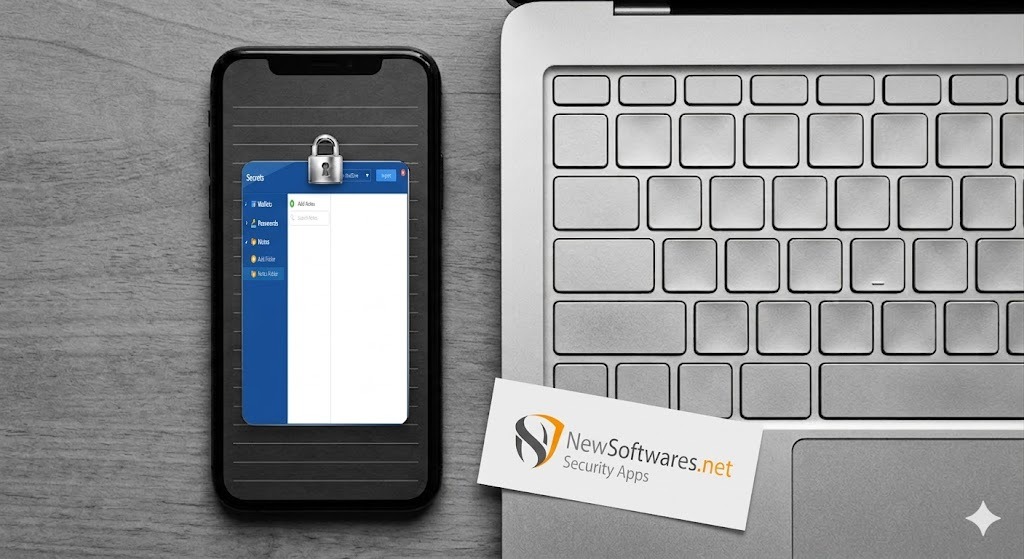
Permissions Password vs Open Password — Explained
Open Password (Encryption)
This is full document encryption. Without the password, the file data is scrambled. Microsoft Office utilizes AES-256 for this, making it virtually uncrackable. To set it: Open the document, go to File > Info > Protect Document > Encrypt with Password.
Permissions Password (Restriction)
This allows anyone to open and read the document, but prevents editing, copying, or printing. This does not encrypt the file. It is merely a flag telling the software to restrict tools. To set it: go to Review > Restrict Editing.
Can I add password protection to my file on my desktop?
If it is a standalone file that isn't an Office document or PDF (like a video, image, or text file), Windows 10 cannot password protect the individual file natively without EFS. You must either place it in a CMD-hidden folder, ZIP it, or use encryption software.
Create Password Protected ZIP in Windows 10 — No Software
Historically, Windows allowed you to add passwords to ZIP files natively. That said, Microsoft removed the choice to create password-secured ZIPs natively in modern Windows 10 builds.

While Windows 10 can extract password-secured ZIPs, you cannot create them without installing external tools like 7-Zip or WinRAR. If you are strictly adhering to a "no software downloads" rule, and you are on Windows 10 Home, the CMD batch script is your only remaining local folder choice.
Reasons "No Software" Isn't Always the Best Security
The native Windows 10 approaches have glaring holes: EFS is missing from Home editions, the CMD trick isn't true encryption, and batch-protecting files natively is tedious. For true AES-256 encryption across any Windows edition that expands as your data grows, we recommend Folder Lock.


Beyond Basic Passwords: Why Native Windows Tools Fall Short
When you shift from native Windows 10 workarounds to a dedicated security architecture (like Folder Lock or Folder Protect), you gain capabilities that directly address modern data threats like system reboots, hardware theft, and unauthorized data recovery.

Kernel-Level Safe Mode Protection
One of the biggest flaws with the CMD batch script or basic Windows hiding techniques is that they are entirely bypassed if an intruder simply reboots your computer into Windows Safe Mode. Professional locking tools integrate directly at the Windows kernel level. That means that even if your system is booted with minimal drivers, your vaults remain strictly locked, invisible, and inaccessible.

Granular Access (Read-Only or Undeletable)
Windows 10 native folder protections are typically all-or-nothing. Advanced offline software lets you assign selected restrictions to a file. for instance, you can choose to make a file completely "undeletable" but still allow others to read it, or you can make it "write-protected" so co-workers can view your data without accidentally modifying the contents.
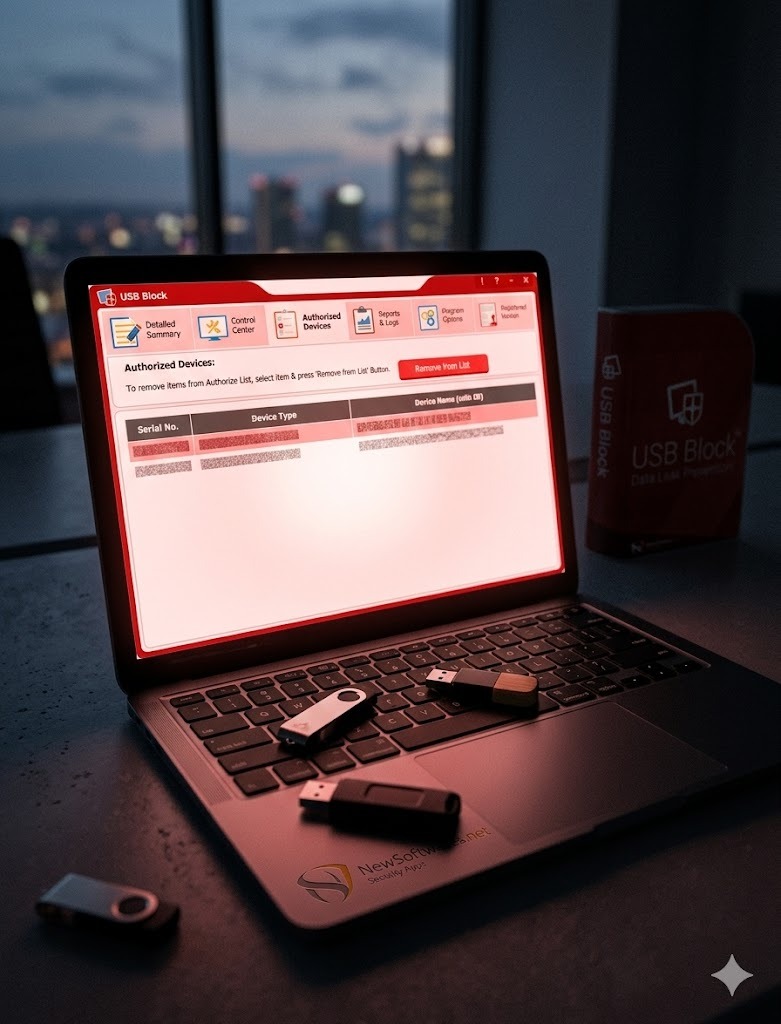
Stealth Operation & Hack Monitoring
True privacy means hiding the fact that you are hiding something. Advanced solutions offer a "Stealth Mode" that completely wipes the program's shortcuts from the Desktop, Start Menu, and Add/Remove Programs list. The vault only materializes when you press a selected, secret hotkey combination. Furthermore, if an intruder tries to guess your password, the software can actively log the attempts and automatically log off your Windows session or shut down the PC.

On-the-Fly Virtual Decryption
Unlike basic tools that physically decrypt files onto your hard drive (leaving recoverable traces), dedicated vault software utilizes dynamic virtual drives. Data is decrypted strictly within your system's RAM. When the locker is closed, all traces vanish instantly, completely shielding you from deep-scan data recovery software.
Head-to-Head Comparison: Native vs Software
Here is how the native approaches stack up against dedicated encryption and locking software when dealing with Windows 10.
| approach | True Encryption? | Safe Mode Security | Stealth / Hidden Operation | Win 10 Home Support |
|---|---|---|---|---|
| EFS (Native) | Yes (Tied to user profile) | No | No | No |
| CMD Script | No (Hides only) | No (Bypassed entirely) | No | Yes |
| Office Passwords | Yes (AES-256) | Yes (File-level) | No | Yes |
| Folder Lock / Protect | Yes (AES-256 Virtual Drive) | Yes (Kernel-Level) | Yes (Hotkey access) | Yes |
Owner-Safe Problem Solving & File Recovery
A frequent side effect of native file protection is accidental data loss. If you are searching for answers to "forgot password" queries, here is how to recover access as the legitimate owner.
If you lose an Open Password for an Office document, Microsoft cannot recover it. There is no "forgot password" link for offline AES-encrypted files. If it is a Permissions Password, you can sometimes bypass it by uploading the file to Google Drive and opening it as a Google Doc, which often strips the edit restrictions.
since the CMD approach doesn't encrypt anything, recovery is straightforward. Right-click your Locker.bat file and select Edit. This opens the script in Notepad. Look for the line if NOT %pass%==YOUR_PASSWORD_HERE goto FAIL. Your password is written right there in plain text.
If you changed your Windows password through an admin reset (instead of typing your old password to change it), you will lose access to EFS files. You must restore your backed-up EFS certificate (.pfx file) via the Certificate Manager (certmgr.msc). Without that backup, the files are permanently unrecoverable.
Common Questions and Answers
Frequent Queries Addressed
Straightforward answers to the most frequent Windows 10 file protection scenarios.
Use the CMD batch file approach to create a hidden locker, or use EFS (Properties > Advanced > Encrypt contents to secure data) if you have Windows 10 Pro. Windows 10 Home does not have a native GUI folder lock.
Your only native choices on Windows 10 Home are the CMD folder-hiding trick, or applying passwords individually to documents using Microsoft Office. For true folder encryption, external software is mandatory.
No, Google Drive does not offer a function to password protect selected folders natively. You control access via sharing permissions (who you invite to the folder). If you need a password, you must encrypt the folder locally (e.g., using Folder Lock or ZIP) before uploading it to Drive.
If you apply an Open Password to a PDF (requiring a password to view the contents), yes, standard PDF software applies AES encryption. If you apply a Permissions Password (restricting printing/editing but allowing viewing), the content is not encrypted.
If it is a generic file (like a .jpg or .txt) and you are on Windows Home, no. You must place it in a locked ZIP file, a hidden CMD folder, or use a tool like Folder Lock to secure the selected item on your desktop.
Right-click the file/folder, select 7-Zip > Add to archive. Under the "Encryption" section on the right side of the window, enter your password, ensure the approach is set to AES-256, and click OK.
If the document has an Open Password (encrypted), cloud services like Google Drive or OneDrive cannot index or read the contents. The recipient must download the file and open it in a compatible desktop app using the password you provide them separately.
Our Verdict: The Bottom Line
Relying on "no software" approaches in Windows 10 is risky unless you are running Windows 10 Pro and fully understand EFS certificate backups. The CMD trick is easily bypassed, and Windows 10 Home users are left completely without native folder encryption.
If you are serious about data protection, trying to force the OS to do something it wasn't designed for is counterproductive. Folder Lock offers the AES-256 military-grade encryption missing from Windows Home, applies it with a single click, and securely backs up lockers to the cloud.